
Appearance
Analysis Settings
Settings related to Analysis Mode of LumiFind. Many of the changes will only take effect for the next analyses.
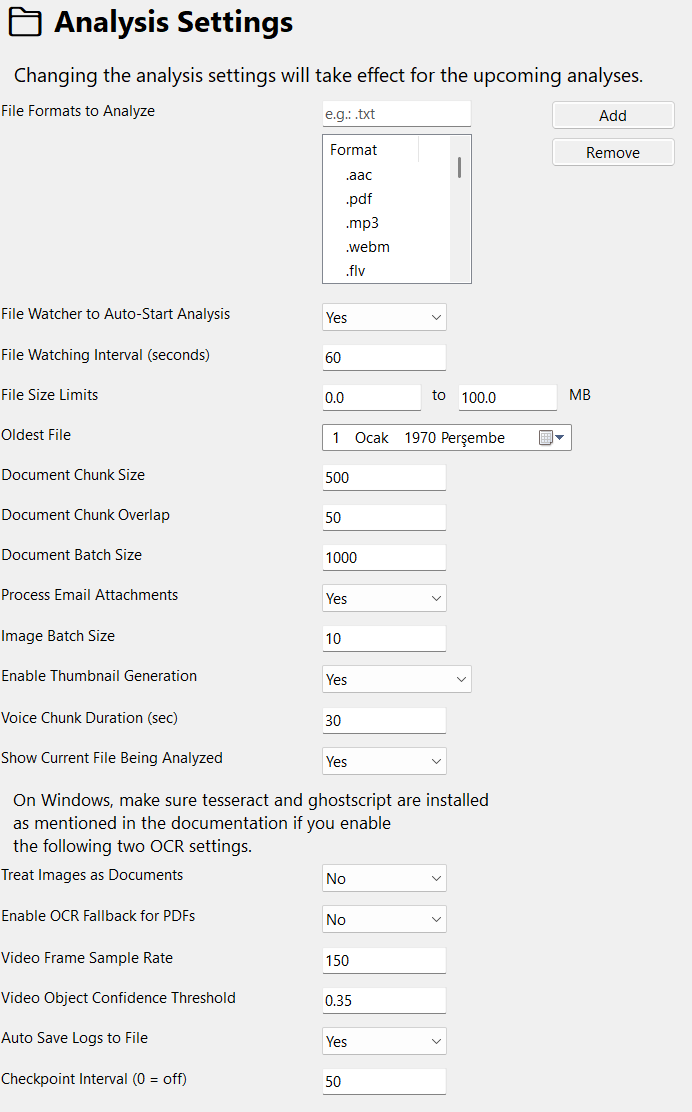
File Formats to Analyze
Determines which file types will be included in the analysis. If a new format is added in this section, it will automatically be added to Search Settings as well. To add a new format, type the extension starting with a dot (e.g., .txt) and press "Add". To remove a format from being analyzed, select it from the table and press "Remove". If a format is in the Search Settings, but not here, it will not be analyzed.
File Watcher to Auto-Start Analysis
If enabled, LumiFind monitors included folders for new, modified, or removed files as well as the individually tracked files. When a change is detected, analysis starts automatically. The scan interval can be adjusted using the File Watching Interval setting. Default: No (disabled)
File Watching Interval
Determines the interval for automatic analysis if enabled. If multiple file changes are detected within this period, analysis runs only once. Default: 60 seconds.
File Size Limits
Sets the minimum and maximum file sizes that LumiFind will process. Files outside this range will be ignored. Default is between 0 and 100 MB.
Oldest File
Specifies the oldest file to include in analysis. This setting affects indexing only, not searching. For example, if you would like to index files only from the last 5 years, select a date using the date picker. On Linux, the date must be entered manually in YYYY-MM-DD format. Default: 1970-01-01.
See Search Settings for specifying date for searches.
Document Chunk Size
Determines the maximum size of each document chunk when splitting files for analysis. Smaller chunks may improve search accuracy. Default: 500
Advantages:
Improved search accuracy: Smaller chunks help the system match queries more precisely.
Memory efficiency: Processing smaller pieces reduces memory usage compared to handling an entire document at once.
Better context capture: Key points are less likely to be lost.
Disadvantages:
Potential context loss: If chunks are too small, the meaning of longer sentences or paragraphs may be split.
Increased processing: More chunks mean more embeddings and computations.
Document Chunk Overlap
Specifies how much overlap there should be between consecutive document chunks. Overlap helps preserve context across chunks. Default: 50
Advantages:
Preserves context: Helps maintain meaning across chunk boundaries.
Improved search relevance: Overlapping ensures queries can match content that spans chunks.
Disadvantages:
More data to process: Overlap increases the total number of chunks.
Potential redundancy: Repeated content may be processed multiple times.
Document Batch Size
Sets the number of document chunks processed together in a single batch. Larger batch sizes may speed up processing but use more memory. If you encounter out-of-memory errors, consider decreasing this value. Default: 1000
Process Email Attachments
If an email contains an attachment readable as a document, also include it in the analysis. Default: Yes
Image Batch Size (Pro Edition)
Determines how many images are processed together in a single batch. Larger batches may improve throughput but consume more resources. Default: 2
Enable Thumbnail Generation (Pro Edition)
Enables thumbnail generation during analysis. This is helpful when the network or mapped storage is detached after analysis. If a thumbnail exists and Visual Settings -> Display Thumbnails in Search Results is enabled, selecting a result will display the thumbnail without needing access to the original file or storage location. Default: Yes
EXIF Geocoding (Pro Edition)
When enabled, LumiFind reads image metadata (EXIF) such as camera model and GPS location during analysis. This metadata becomes searchable, so you can find images by camera type or location. Default: Yes.
Voice Chunk Duration (sec) (Pro Edition)
Specifies the length in seconds for each segment of voice or video files during analysis. Shorter chunks may improve accuracy for long recordings. Default: 30 seconds.
Show Current File Being Analyzed
When enabled, displays the file currently being analyzed in the interface. Default: No.
Treat Images as Documents
If enabled, image files included in File Formats to Analyze will be treated like documents, extracting any text or visual information where applicable. Default: No.
WARNING
Warning: This will significantly increase the analysis time due to each image being processing again for document analysis.
INFO
Note: Windows users need to install Tesseract and GhostScript as described on this page. For Mac and Linux users, these tools are installed automatically.
Enable OCR Fallback for PDFs
If enabled, LumiFind will attempt OCR (Optical Character Recognition) on PDFs that cannot be read natively, allowing extraction of text from scanned documents. Default: No.
WARNING
Warning: This will significantly increase the analysis time for each PDF file due to the additional processing required.
INFO
Note: Windows users need to install Tesseract and GhostScript as described on this page. For Mac and Linux users, these tools are installed automatically.
Video Frame Sample Rate
Determines how often a frame is analyzed. Default is 25, which is about 1 frame per second if video is 25 FPS. If video scenes change faster, you can reduce this value. However, reducing this value will increase the analysis time.
Video Object Confidence Threshold
The confidence value between 0 and 1 for the frame detector to tag an object as a known object. Default 0.25 (25% confidence). Higher values will give more accurate object results, but the detectors may miss some objects.
Auto Save Logs to File
Enabling this will automatically save everything that LumiFind reports during session into a file. The saved logs can be found under:
on Windows: C:\Users\%username%\.lumifind\logs\module_name_logs_YYYYmd_HHMMSS.txt on macOS and Linux: ~/.lumifind/logs/module_name_logs_YYYYmd_HHMMSS.txt
File contents will obey the settings in Log Level.
Checkpoint Interval
Stores the current analysis state after every X files, as specified in the next field. This is useful when processing large datasets, as it prevents the analysis from starting over if something unexpected happens. Default: 50. Set to 0 to disable.