
Appearance
Find Duplicates
LumiFind can help you find duplicate files in your indexed library. This is useful for freeing up disk space and keeping your files tidy.
Duplicate finding works only on files that have already been analyzed and indexed by LumiFind. It does not scan folders on demand; it uses the existing index. By default it uses the stored start-of-file fingerprints and sizes, so results come back almost instantly. Turn on Exact verification (slower) to confirm full file content — useful for large or important files; this re-reads the files from disk and may take a while, but a Cancel button and a progress line are shown while it runs.
You can switch between Semantic Search and Find Duplicates using the mode buttons at the top of the Search Mode. Find Duplicates only works after at least one analysis has been completed.
Duplicates of a File
In this mode you pick one file and LumiFind searches your index for copies of it.
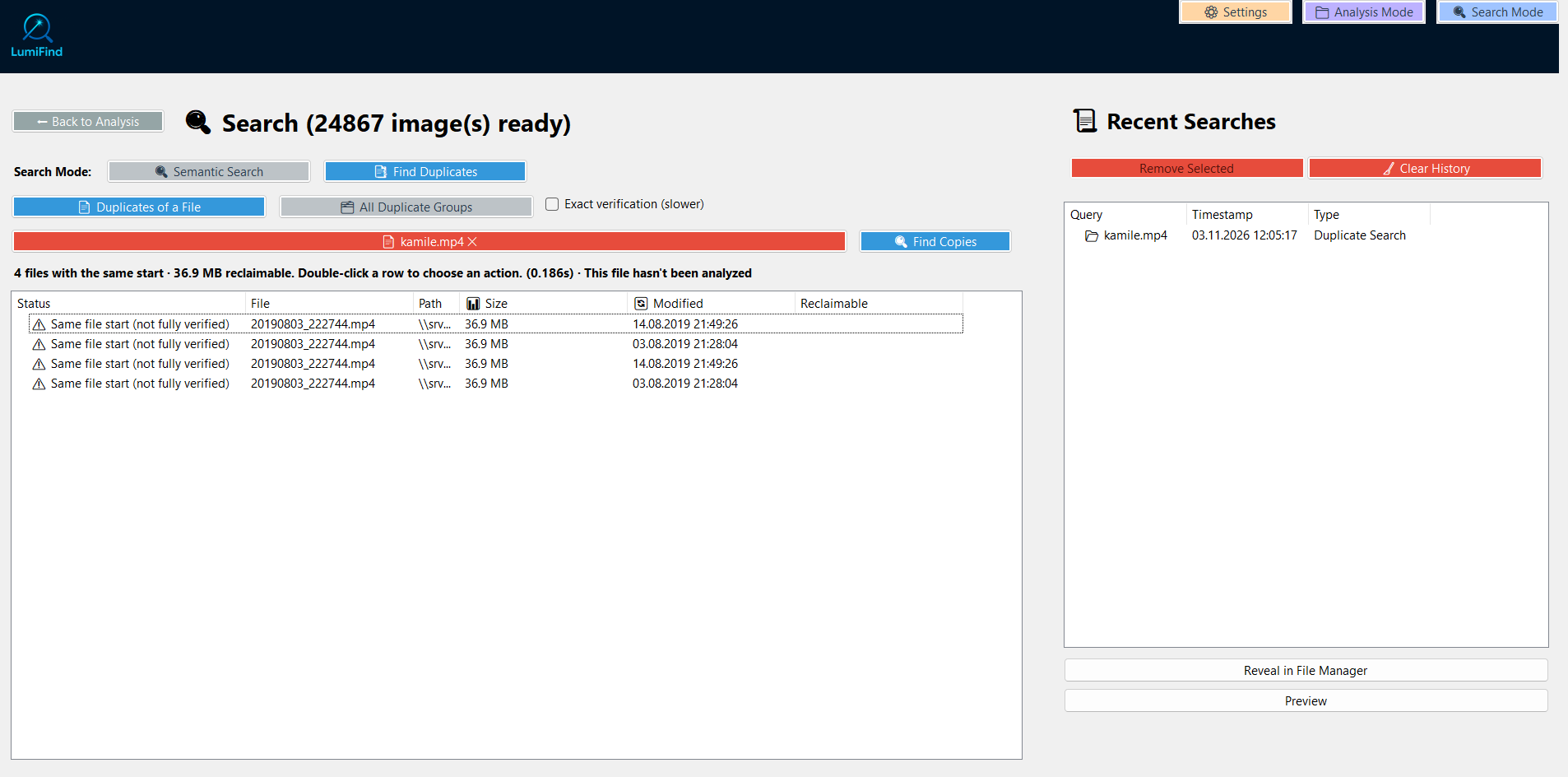
- Press Choose File and select a file from your computer.
- Press Find Copies.
LumiFind compares the selected file against your index and lists the copies it finds. Each result shows a status:
- Exact copy (same content): The file is an identical copy.
- Same file start (not fully verified): The beginning matches, but the full file has not been verified yet.
- Same size only (different content): Same size, but different content.
- Not found on disk anymore: The file is still in the index, but no longer exists on disk.
The total number of exact copies and the reclaimable space are shown at the bottom. You can double-click a row to open the action menu, where you can reveal the file or delete a single copy.
Press Clear to remove the selected file and start over.
All Duplicate Groups
In this mode LumiFind scans the whole library and groups files that are identical.
- Switch to All Duplicate Groups.
- Press Scan Whole Library.
When the scan finishes, LumiFind shows groups of duplicate files, how many files are in each group, and how much space can be reclaimed. The summary line shows the number of groups, files, and reclaimable space.
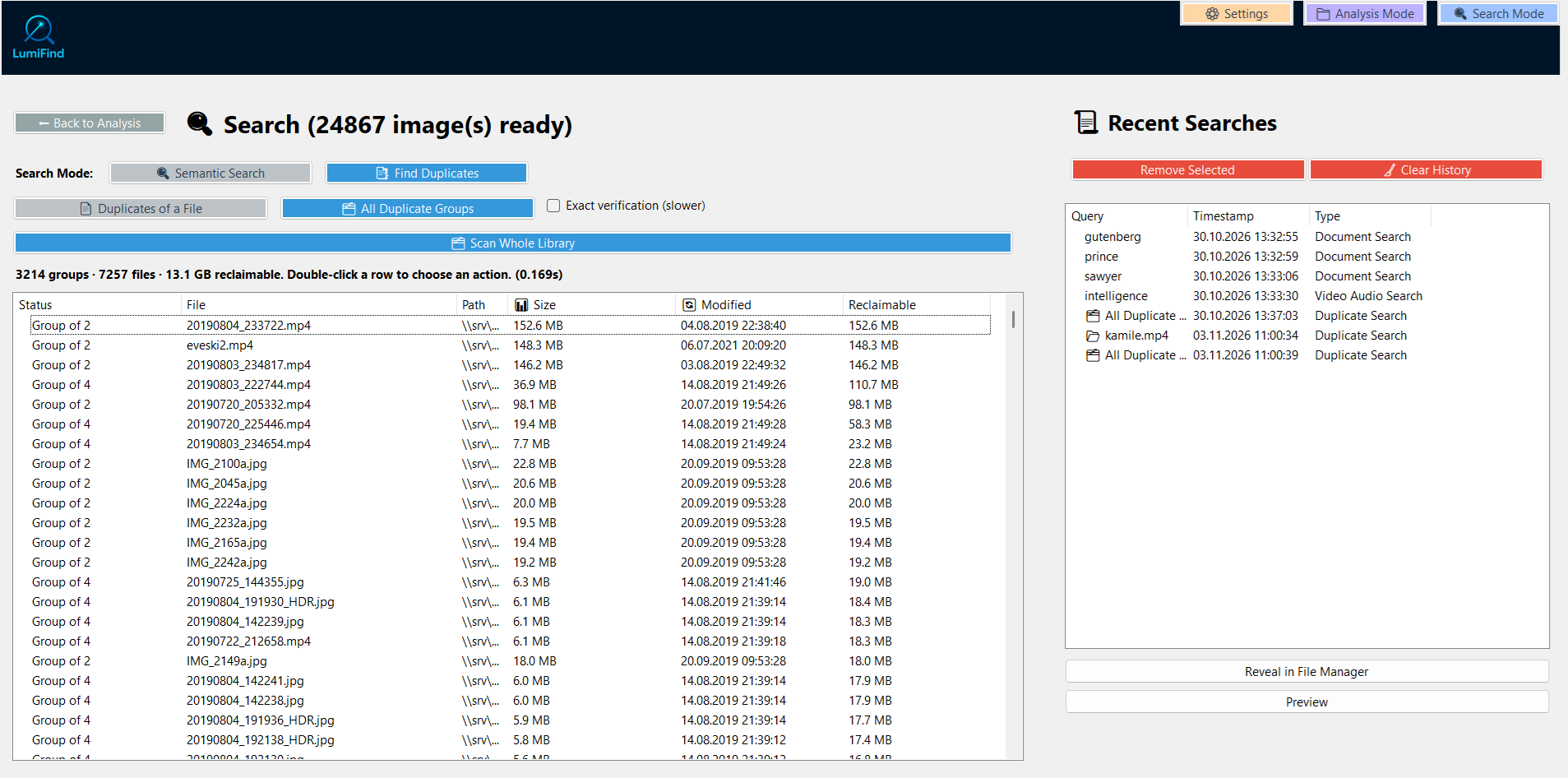
Double-click a group to open the list of files and choose an action for one of them.
Actions
- Select Action…: Opens the action menu for the selected row.
- Delete This One…: Moves the selected file to the trash and removes it from the index. You will be asked to confirm first.
You cannot delete files while analysis is running. Stop the analysis first, then try again.
What Exact Verification Checks
The index stores a start-of-file fingerprint for each analyzed file: the SHA-256 hash of its first 1 MB. That fingerprint is fast to produce, but it is not proof that two files are identical — two different files can share their first 1 MB.
How a match is decided:
- Quick mode (default). Only index data is used: the stored fingerprint and the file size. Nothing is read from disk, so results come back almost instantly. A match here means "same file start and same size", which is why such rows are labelled Same file start (not fully verified).
- Exact verification (switch on). LumiFind re-reads the source file and every candidate from disk in 1 MB chunks and computes each file's full-file SHA-256. A row becomes Exact copy (same content) only when the full hashes are equal. A candidate that shares the first 1 MB but differs later stays Same file start (not fully verified); one with the same size but different content is shown as Same size only (different content).
- Images. Image records do not keep a content fingerprint in the index, so candidates are narrowed by exact file size first and then confirmed with the full-file SHA-256 during exact verification.
- Missing files. Because quick mode never touches the filesystem, a file that has been deleted or moved is only reported as Not found on disk anymore when exact verification is on.
- Very large size groups. For records without a fingerprint, groups of more than 50 files with exactly the same size are skipped during a full-library scan (hashing all of them would take far too long); the summary reports how many groups were skipped.
- Source file not indexed. In Duplicates of a File, the file you pick does not have to be in the index. If it is not, LumiFind computes its start-of-file fingerprint from disk so it can still be compared.
- Cancelling. Exact verification re-reads files, so it can take a while on large libraries. Cancel stops at the next file and keeps the rows found so far.
In short: quick mode tells you "these files look identical" from the index alone; exact verification proves it by comparing the complete content.
Notes
- Find Duplicates works only on analyzed/indexed files. Files that were never analyzed, or were removed from the index, will not appear.
- It does not require any AI model to be enabled, so it can be used even when all models are disabled.
- By default LumiFind uses the stored start-of-file fingerprints and sizes, so results come back almost instantly. Turn on Exact verification (slower) to confirm full file content; this re-reads files from disk and can take a while for large libraries, but it can be cancelled at any time.
- While an exact verification runs, the Cancel button appears and the status line shows how many files have been hashed so far. Cancelling stops at the next file and keeps the partial results.
- LumiFind first checks the file start (partial match) and then verifies the full content for exact copies, so both speed and accuracy are preserved.
- A file that is not in the index cannot be used as the source in Duplicates of a File mode.
- Related files and duplicates use the same index, so they stay consistent with your latest analysis.