
Appearance
Find Related Files
LumiFind can find files that are semantically similar to a file you have already analyzed. Instead of searching by keywords, it compares the meaning of the file's content against your entire index and lists the closest matches.
This is useful when you remember a file but want to discover others that cover the same topic, style, or subject.
How It Works
- Switch to Search Mode and run a search (or browse your results).
- Select a file from the results list.
- Press the Show Related Files button.
- A new window opens with a table of related files, ranked by similarity.
You can also open this dialog at any time by selecting a file and pressing the button. The window title shows the name of the source file.
The Related Files Window
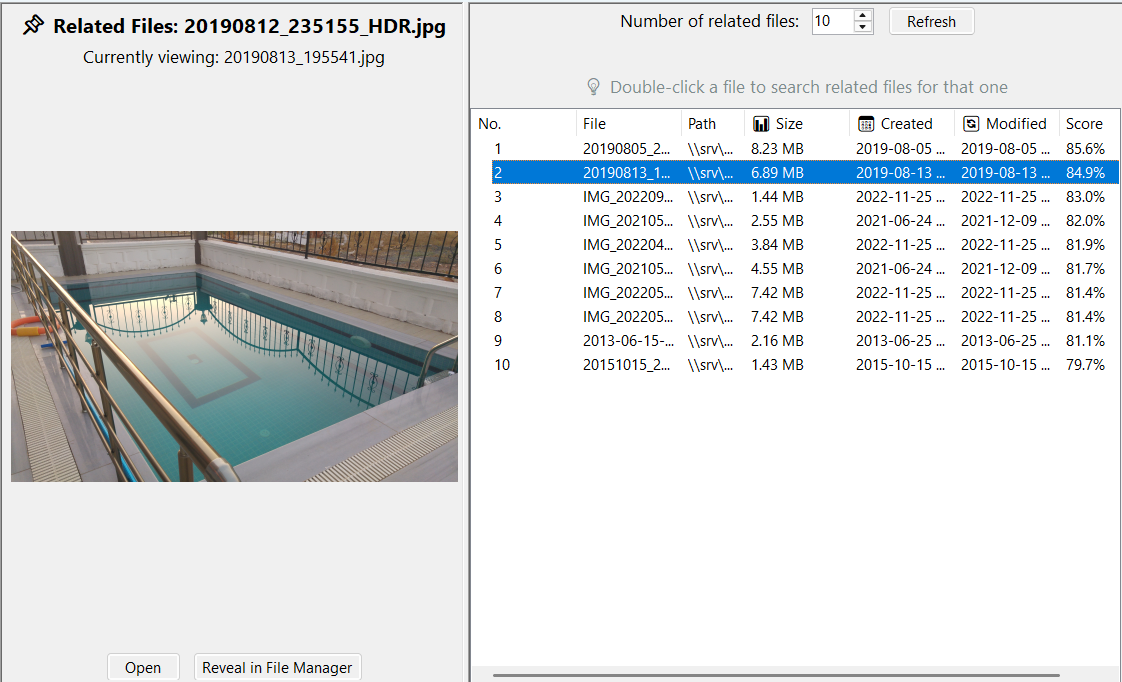
The window displays a table with the following columns:
- No. — Rank of the result
- File — Name of the related file
- Path — Full location on disk
- Size — File size
- Created — Creation date
- Modified — Last modification date
- Score — Similarity score (higher is more similar)
Adjusting the Number of Results
At the top of the window you can set how many related files to retrieve (between 3 and 50). Press Refresh to re-run the search with the new number.
Navigating Results
- Single-click a row to preview the file.
- Double-click a row to start a new related-files search using that file as the source.
- While the dialog is open you can keep browsing other files; the window updates when you select a new one.
Requirements
- The source file must have been analyzed and indexed by LumiFind. If it is not in the index yet, LumiFind shows a clear message instead of an empty list.
- Works in both Metadata and Content and Metadata Only search modes.
- Related files are searched within the same media type (documents with documents, images with images, etc.).
- The search uses your existing index, so results are returned quickly without re-reading files.
Notes
- Results are ranked by relevance score, from most to least similar.
- If the content index cannot be opened (for example, after a model change), LumiFind displays an explanatory message.
- Related files and duplicates use the same index, so they stay consistent with your latest analysis.
- You cannot use a file that is not in the index as the source. Analyze it first, then try again.