
Appearance
Model Settings
Settings related to models used in the LumiFind. Enabling models will require the restart of the program, whereas disabling will not. Changing models will also require re-analysis of the files in that type to take effect, which mostly means the deletion of the original analysis data. To keep everything clean, you may consider restarting LumiFind.
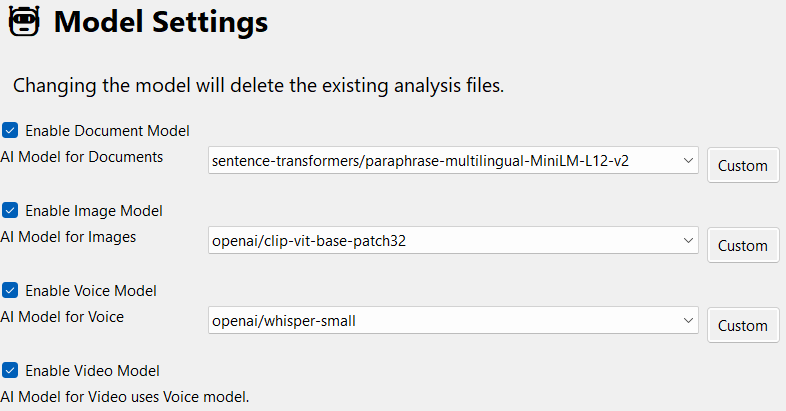
Enable Document Model
Checking the box loads the document model at startup and activates the analysis of document files. Changing this setting requires restarting LumiFind.
AI Model for Documents
Specifies which model to use for document analysis. Its definition is shown directly below. Changing the model requires re-analysis of all document files. If you are using the Pro Edition, voice and video analyses must also be repeated. You will be asked to confirm the deletion of existing analysis data before the change is applied. To see the default available models, see this page.
The model size is displayed next to the model name, if it is not found locally, it needs to be downloaded once. Check the download location here.
If you would like to add or use another model not listed in the list, press "Custom" button and follow instructions on this page.
Enable Image Model (Pro Edition)
Checking the box loads the image model at startup and activates the analysis of image files. Changing this setting requires restarting LumiFind.
AI Model for Images
Specifies which model to use for image analysis. Its definition is shown directly below. Changing the model requires re-analysis of all image files. You will be asked to confirm the deletion of existing analysis data before the change is applied. To see the default available models, see this page.
The model size is displayed next to the model name, if it is not found locally, it needs to be downloaded once. Check the download location here.
If you would like to add or use another model not listed in the list, press "Custom" button and follow instructions on this page.
Enable Voice Model (Pro Edition)
Checking the box loads the voice model at startup and activates the analysis of voice files. Changing this setting requires restarting LumiFind.
AI Model for Voice
Specifies which model to use for voice and video analysis. Its definition is shown directly below. Changing the model requires re-analysis of all voice and video files. You will be asked to confirm the deletion of existing analysis data before the change is applied. To see the default available models, see this page.
The model size is displayed next to the model name, if it is not found locally, it needs to be downloaded once. Check the download location here.
INFO
Voice model also uses the document model to enable semantic search in the transcript.
If you would like to add or use another model not listed in the list, press "Custom" button and follow instructions on this page.
Audio/Video Language
By default, LumiFind's Voice Models assume that voice clips and video audio tracks can be in any language. If the recording is noisy, the language may sometimes be detected incorrectly. To improve accuracy and speed up transcription, you can select the language from the dropdown. The dropdown shows LumiFind's supported interface languages plus an "Auto" option (default, lets Whisper detect the language automatically). If your language is not listed, select "Other" and enter the 2-letter language code manually. If you are unsure which code to use, check this Wikipedia page: https://en.wikipedia.org/wiki/List_of_ISO_639_language_codes.
Some examples are: de (German), en (English), es (Spanish), fr (French), tr (Turkish).
Enable Video Voice Model (Pro Edition)
Checking the box loads the voice model at startup and activates the analysis of video files to extract the transcript. Changing this setting requires restarting LumiFind.
There is no separate model selection for videos since it uses the model defined for the Voice.
Enable Video Frame Detection (Pro Edition)
Checking this enables the analysis of the video frames for the objects inside the frames. By default, every 25th frame (if a video is 25 FPS, this means 1 frame per second) is analyzed. This value can be changed in Analysis Settings -> Frame Sample Rate. You can also change the confidence threshold if some objects are not detected. To see the default available detectors, see this page.
INFO
Video Voice Analyzer and Video Frame Analyzer work independently. If both Video Voice Model and this option are enabled, videos are analyzed twice.
Video Frame Detector (Pro Edition)
Currently, only a set of detectors can be used in LumiFind. By default, it is set to opencv_ssd_coco. Detector size is displayed next to its name. If the detector is not found locally, it needs to be downloaded once. Check the download location here.
Selecting one detector will display a short description below.
Hugging Face Token
Default models available in LumiFind are public repositories. If you would like to access private model repositories on the Hugging Face, you can create one by clicking here and enter into this field. It is optional and empty by default.