
Appearance
Danger Zone
DANGER
Danger: Settings in this section can delete analysis data or reset LumiFind. Make changes here with caution.
The Danger Zone contains settings that can significantly affect LumiFind's behavior or data. Make changes here with caution, as they may result in data loss or require reconfiguration.
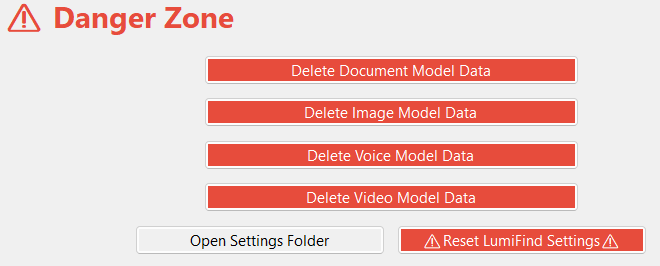
Delete Document Model Data
Removes all stored document analysis data. After this action, every document must be analyzed again before it becomes searchable.
Delete Image Model Data (Pro Edition)
Clears all stored image embeddings and analysis results. Images will need to be reprocessed before they can appear in search results.
Delete Voice Model Data (Pro Edition)
Deletes all indexed voice and audio analysis data. Voice files must be reanalyzed to restore search functionality.
Delete Video Model Data (Pro Edition)
Removes all video analysis and indexing data. Videos will require full reprocessing before they can be searched again.
Delete Frame Model Data (Pro Edition)
Removes all video frame analysis data. Video frames will need to be reprocessed before they can appear in search results.
Open Settings Folder
Opens the application settings folder. Not dangerous at all. It's simply here because we had no better place to put it. Feel free to take a peek if you're curious about how tidy things are behind the scenes.
Reset LumiFind Settings
Deletes the LumiFind's settings file and restores the application to its initial state with the Welcome Wizard. Your analysis data will remain untouched.
Set Folders
LumiFind allows you to change all folders used to store analysis data and model data. These folders are explained here if you want to learn more. This option can be useful if you want to share analysis data with other users or if you need to store the data in a different location.
This also includes the folder where AI models downloaded from Hugging Face are stored. See Model files from Hugging Face for the default location. Already downloaded models are not moved when you change this folder.
The option becomes visible in the bottom left when you enable Show Advanced Settings under Generic Settings.
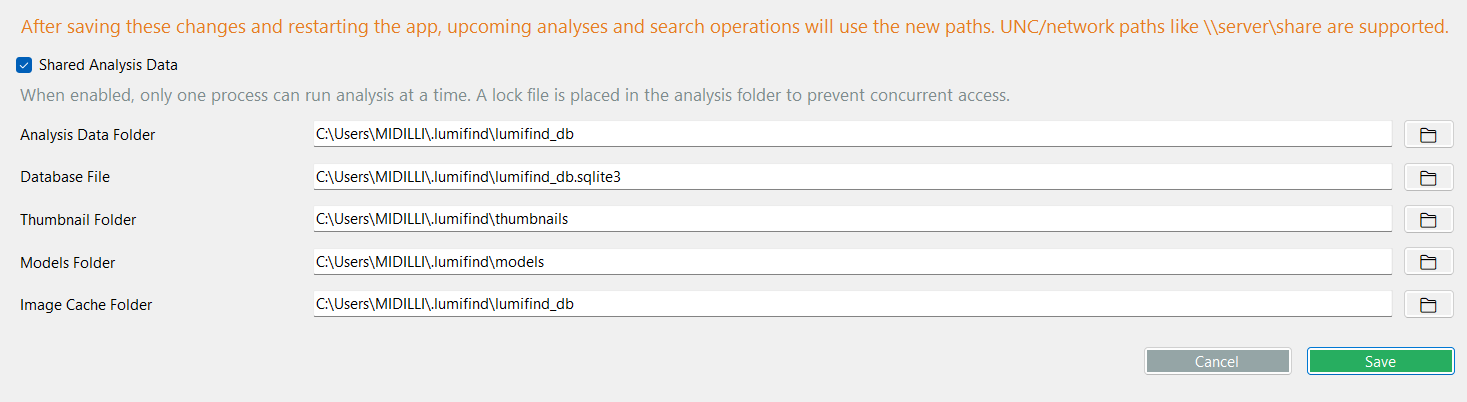
To change a folder, click the folder icon on the right and select a new location.
You can also change the location of the Database File, which stores metadata about the files. Click the folder icon and choose a new file name and location.
INFO
You can also use shared folders on network shares, or mounted drives as paths.
WARNING
Note that changing these settings will not move existing folders to the new location. The new locations will only be used for future analyses.
If you are satisfied with the changes, click "Save". The settings will be applied after the press "Save" on the settings as well.
Shared Analysis Data can be used if you have multiple licenses and want to share analysis data between them. More details are explained here.