
Appearance
Visual Settings
Settings related to user interface behavior of LumiFind.
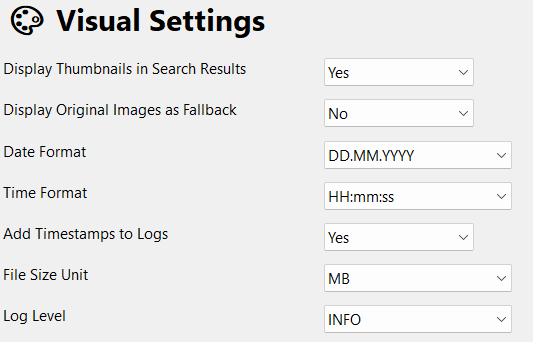
Display Thumbnails in Search Results
When enabled, thumbnails appear after selecting an image from the results. If the images contain sensitive content, you can disable this option by choosing No. Default: Yes.
Display Original Images as Fallback
When Display Thumbnails in Search Results is enabled, the system first looks for a generated thumbnail in the analysis data. If none is found, this setting determines whether the original file is shown as a fallback thumbnail, which requires access to its original location, or whether a no thumbnail found message is displayed instead. The interface also indicates whether the shown image is a generated thumbnail or the original file. Default: No.
Date Format
Specifies how dates are displayed in LumiFind. Options include:
- DD.MM.YYYY - Day.Month.Year. E.g., 26.11.2025 (Default)
- MM/DD/YYYY - Month/Day/Year. E.g., 11.26.2025
- YYYY-MM-DD - Year-Month-Day. E.g., 2025-11-26
Time Format
Specifies how time is displayed in LumiFind. Options include:
- HH:mm:ss - 24-hour format with seconds. E.g., 23:37:45 (Default)
- HH:mm - 24-hour format without seconds. E.g., 23:37
- hh:mm:ss AM/PM - 12-hour format with AM/PM and seconds. E.g., 11:37:45 PM
Add Timestamps to Logs
Adds timestamps to the logs displayed on the interface and exported to the file. Display format uses Date Format and Time Format chosen in the settings. Default: Yes
File Size Unit
Determines the unit used to display file sizes. Options include B, KB, MB, and GB. Default: MB
Log Level
Specifies the level of detail shown in the Logs. Available options:
- DEBUG - Shows detailed debugging information. Might be useful to get support from us.
- INFO - Shows general informational messages (Default).
- WARNING - Shows warnings about potential issues.
- ERROR - Shows only error messages.